
Pricing
Pricing information has not been added yet.
Overview
Excelize is an open-source Go library for reading and writing Microsoft Excel spreadsheets in XLSX, XLSM, XLTM, and related Office Open XML formats. It provides a native Go API for creating workbooks, editing cells, formatting sheets, working with formulas, charts, images, tables, and many other spreadsheet features.
The library is designed for both ordinary workbook manipulation and large-file scenarios, including streaming APIs that reduce memory pressure when generating or reading substantial spreadsheets. It supports a wide range of Excel structures while avoiding the need to automate a desktop copy of Microsoft Excel.
Excelize is useful for Go services, command-line tools, reporting systems, and backend applications that need to produce or process Excel files programmatically. Its broad format coverage and streaming capabilities make it suitable for everything from simple exports to complex document-generation pipelines.
README





Excelize
Introduction
Excelize is a library written in pure Go providing a set of functions that allow you to write to and read from XLAM / XLSM / XLSX / XLTM / XLTX files. Supports reading and writing spreadsheet documents generated by Microsoft Excel™ 2007 and later. Supports complex components by high compatibility, and provided streaming API for generating or reading data from a worksheet with huge amounts of data. This library needs Go version 1.25.0 or later. The full docs can be seen using go's built-in documentation tool, or online at go.dev and docs reference.
Basic Usage
Installation
go get github.com/xuri/excelize
- If your packages are managed using Go Modules, please install with following command.
go get github.com/xuri/excelize/v2
Create spreadsheet
Here is a minimal example usage that will create spreadsheet file.
package main

import (
    "fmt"

    "github.com/xuri/excelize/v2"
)

func main() {
    f := excelize.NewFile()
    defer func() {
        if err := f.Close(); err != nil {
            fmt.Println(err)
        }
    }()
    // Create a new sheet.
    index, err := f.NewSheet("Sheet2")
    if err != nil {
        fmt.Println(err)
        return
    }
    // Set value of a cell.
    f.SetCellValue("Sheet2", "A2", "Hello world.")
    f.SetCellValue("Sheet1", "B2", 100)
    // Set active sheet of the workbook.
    f.SetActiveSheet(index)
    // Save spreadsheet by the given path.
    if err := f.SaveAs("Book1.xlsx"); err != nil {
        fmt.Println(err)
    }
}
Reading spreadsheet
The following constitutes the bare to read a spreadsheet document.
package main

import (
    "fmt"

    "github.com/xuri/excelize/v2"
)

func main() {
    f, err := excelize.OpenFile("Book1.xlsx")
    if err != nil {
        fmt.Println(err)
        return
    }
    defer func() {
        // Close the spreadsheet.
        if err := f.Close(); err != nil {
            fmt.Println(err)
        }
    }()
    // Get value from cell by given worksheet name and cell reference.
    cell, err := f.GetCellValue("Sheet1", "B2")
    if err != nil {
        fmt.Println(err)
        return
    }
    fmt.Println(cell)
    // Get all the rows in the Sheet1.
    rows, err := f.GetRows("Sheet1")
    if err != nil {
        fmt.Println(err)
        return
    }
    for _, row := range rows {
        for _, colCell := range row {
            fmt.Print(colCell, "\t")
        }
        fmt.Println()
    }
}
Add chart to spreadsheet file
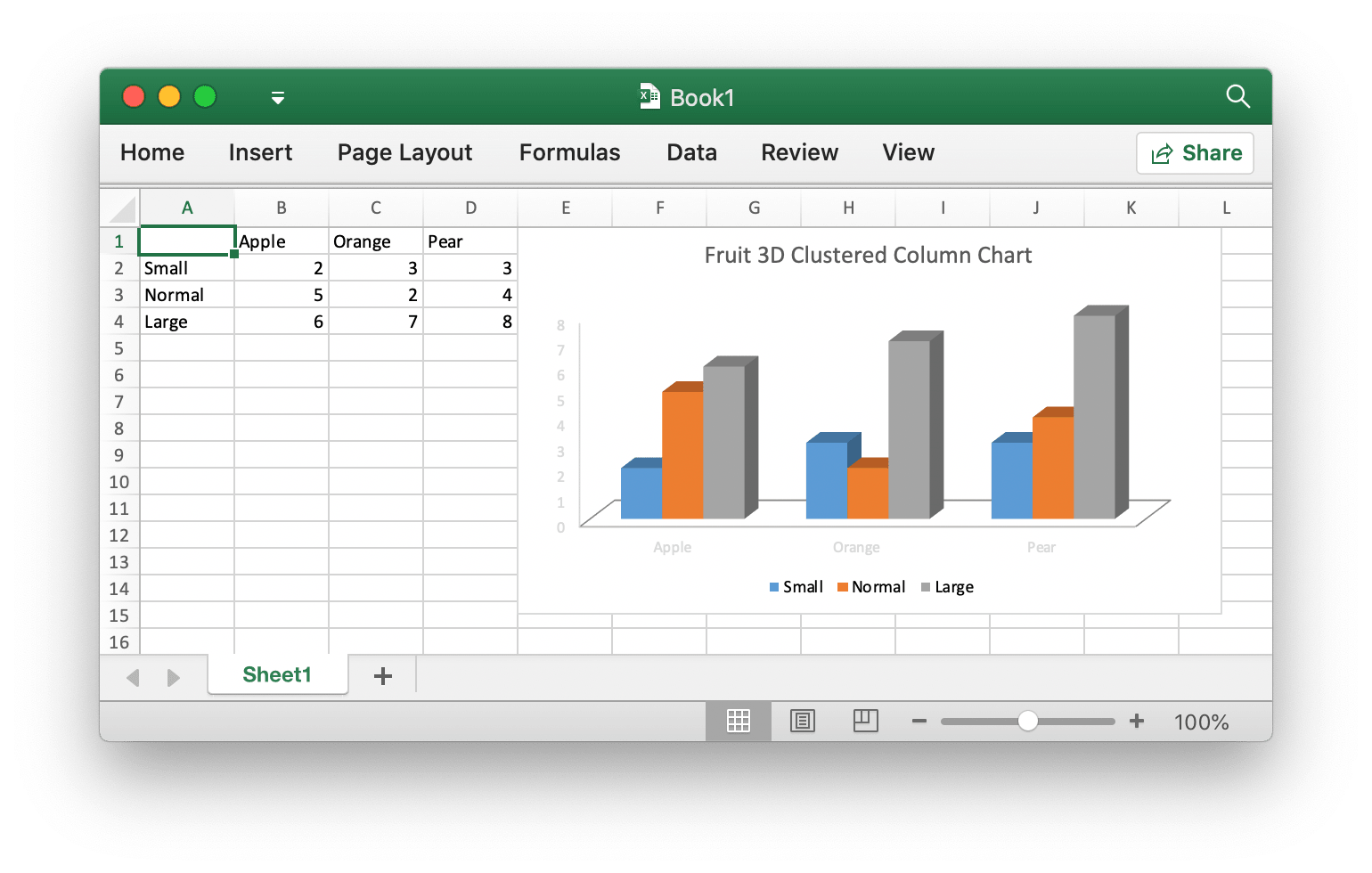
With Excelize chart generation and management is as easy as a few lines of code. You can build charts based on data in your worksheet or generate charts without any data in your worksheet at all.
package main

import (
    "fmt"

    "github.com/xuri/excelize/v2"
)

func main() {
    f := excelize.NewFile()
    defer func() {
        if err := f.Close(); err != nil {
            fmt.Println(err)
        }
    }()
    for idx, row := range [][]interface{}{
        {nil, "Apple", "Orange", "Pear"}, {"Small", 2, 3, 3},
        {"Normal", 5, 2, 4}, {"Large", 6, 7, 8},
    } {
        cell, err := excelize.CoordinatesToCellName(1, idx+1)
        if err != nil {
            fmt.Println(err)
            return
        }
        f.SetSheetRow("Sheet1", cell, &row)
    }
    if err := f.AddChart("Sheet1", "E1", &excelize.Chart{
        Type: excelize.Col3DClustered,
        Series: []excelize.ChartSeries{
            {
                Name:       "Sheet1!$A$2",
                Categories: "Sheet1!$B$1:$D$1",
                Values:     "Sheet1!$B$2:$D$2",
            },
            {
                Name:       "Sheet1!$A$3",
                Categories: "Sheet1!$B$1:$D$1",
                Values:     "Sheet1!$B$3:$D$3",
            },
            {
                Name:       "Sheet1!$A$4",
                Categories: "Sheet1!$B$1:$D$1",
                Values:     "Sheet1!$B$4:$D$4",
            }},
        Title: excelize.ChartTitle{
            Paragraph: []excelize.RichTextRun{
                {
                    Text: "Fruit 3D Clustered Column Chart",
                },
            },
        },
    }); err != nil {
        fmt.Println(err)
        return
    }
    // Save spreadsheet by the given path.
    if err := f.SaveAs("Book1.xlsx"); err != nil {
        fmt.Println(err)
    }
}
Add picture to spreadsheet file
package main

import (
    "fmt"
    _ "image/gif"
    _ "image/jpeg"
    _ "image/png"

    "github.com/xuri/excelize/v2"
)

func main() {
    f, err := excelize.OpenFile("Book1.xlsx")
    if err != nil {
        fmt.Println(err)
        return
    }
    defer func() {
        // Close the spreadsheet.
        if err := f.Close(); err != nil {
            fmt.Println(err)
        }
    }()
    // Insert a picture.
    if err := f.AddPicture("Sheet1", "A2", "image.png", nil); err != nil {
        fmt.Println(err)
    }
    // Insert a picture to worksheet with scaling.
    if err := f.AddPicture("Sheet1", "D2", "image.jpg",
        &excelize.GraphicOptions{ScaleX: 0.5, ScaleY: 0.5}); err != nil {
        fmt.Println(err)
    }
    // Insert a picture offset in the cell with printing support.
    enable, disable := true, false
    if err := f.AddPicture("Sheet1", "H2", "image.gif",
        &excelize.GraphicOptions{
            PrintObject:     &enable,
            LockAspectRatio: false,
            OffsetX:         15,
            OffsetY:         10,
            Locked:          &disable,
        }); err != nil {
        fmt.Println(err)
    }
    // Save the spreadsheet with the origin path.
    if err = f.Save(); err != nil {
        fmt.Println(err)
    }
}
Contributing
Contributions are welcome! Open a pull request to fix a bug, or open an issue to discuss a new feature or change. XML is compliant with part 1 of the 5th edition of the ECMA-376 Standard for Office Open XML.
Licenses
This program is under the terms of the BSD 3-Clause License. See https://opensource.org/licenses/BSD-3-Clause.
The Excel logo is a trademark of Microsoft Corporation. This artwork is an adaptation.
The Go gopher was created by Renee French. Licensed under the Creative Commons 4.0 Attributions license.
Gold Sponsors

Releases
Release information has not been added yet.
Complete your AI stack
Add complementary AI tools for the rest of your workflow.
More recommendations will appear here as matching tools are published.
Best alternatives
Compare similar tools in the same category.