
Pricing
$0
Freemium
Overview
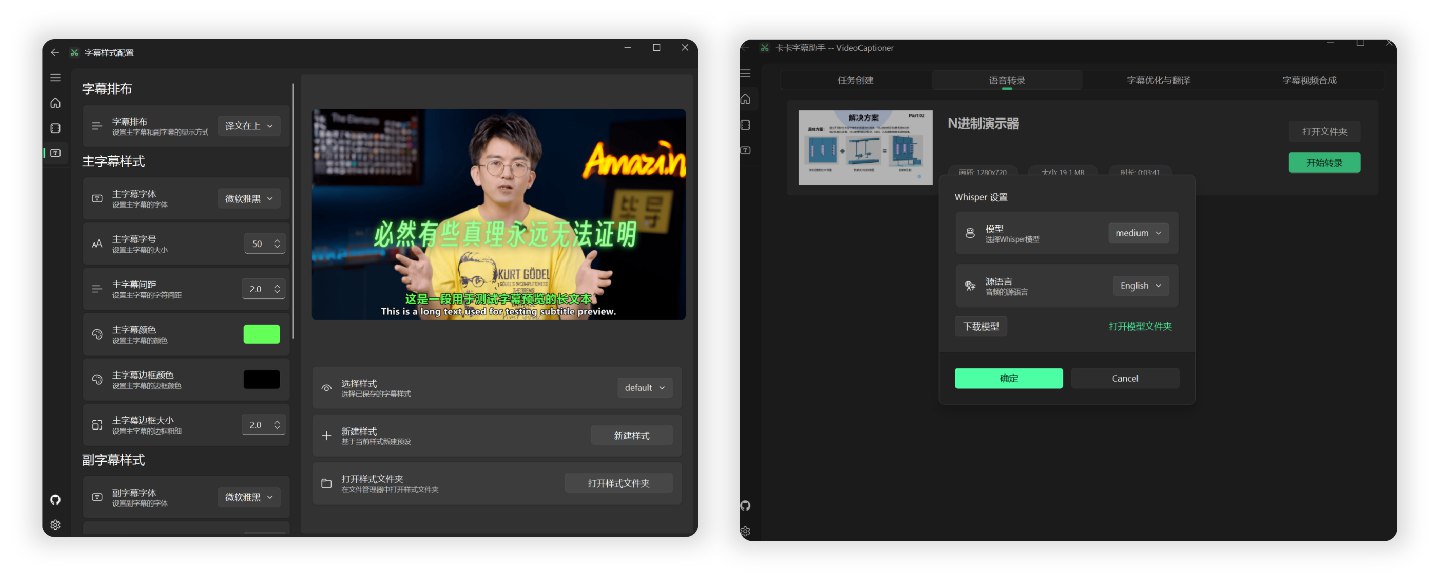
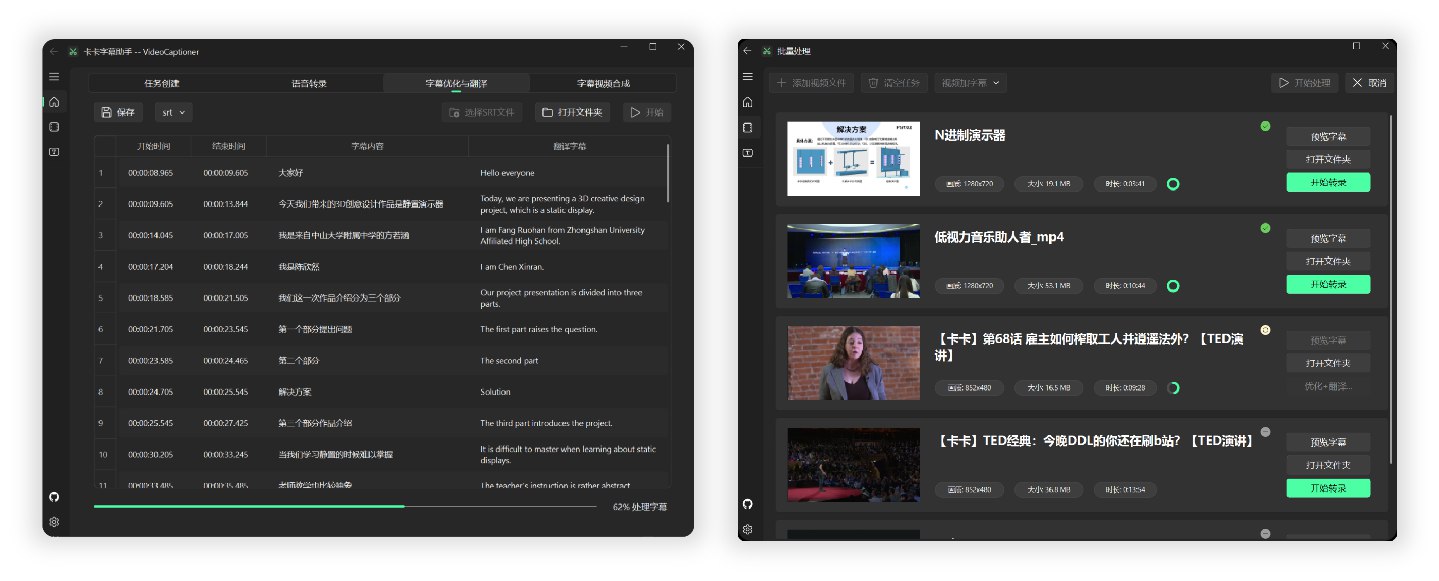
VideoCaptioner is an LLM-powered video subtitle processing tool that provides an all-in-one workflow for speech recognition, subtitle optimization, translation, and video synthesis. It can transcribe audio and video into subtitles, improve subtitle segmentation and accuracy, translate subtitles into other languages, and synthesize the processed subtitles back into videos.
The tool supports multiple speech recognition engines and translation services, including free options that require no API key. LLM functionality can be used for semantic subtitle optimization and context-aware translation, while configuration can be managed through command-line arguments, environment variables, configuration files, or default settings.
VideoCaptioner uses word-level timestamps and VAD (Voice Activity Detection) to improve speech recognition accuracy. It also uses LLM semantic understanding for more natural subtitle segmentation, supports context-aware translation with reflection-based optimization, and provides concurrent batch processing for efficient video and subtitle workflows.
README

VideoCaptioner
Large language model-powered video subtitle processing tool — an all-in-one solution for speech recognition, subtitle optimization, translation, and video synthesis
Online Documentation · CLI Usage · GUI Desktop App · Claude Code Skill
Installation
pip install videocaptioner # Install CLI + GUI desktop app
Free features (Bijian speech recognition and Bing/Google translation) require no configuration and work immediately after installation.
CLI Command Line
# Speech transcription (free, no API key required)
videocaptioner transcribe video.mp4 --asr bijian

# Subtitle translation (free Bing translation)
videocaptioner subtitle input.srt --translator bing --target-language en

# Full workflow: transcribe → optimize → translate → synthesize
videocaptioner process video.mp4 --target-language ja

# Burn subtitles into video
videocaptioner synthesize video.mp4 -s subtitle.srt

# Download online videos
videocaptioner download "https://youtube.com/watch?v=xxx"
To use LLM features such as subtitle optimization and LLM-powered translation, configure an API key:
videocaptioner config set llm.api_key <your-key>
videocaptioner config set llm.api_base https://api.openai.com/v1
videocaptioner config set llm.model gpt-4o-mini
Configuration priority: command-line arguments > environment variables (VIDEOCAPTIONER_*) > configuration file > default values. Run videocaptioner config show to view the current configuration.
All CLI Commands
| Command | Description |
|---|---|
gui | Open the desktop app. You can also run videocaptioner-gui directly |
transcribe | Convert speech to subtitles. Engines: faster-whisper, whisper-api, bijian (free), jianying (free), whisper-cpp |
subtitle | Subtitle optimization/translation. Translation services: llm, bing (free), google (free) |
dub | Generate a dubbed audio track or dubbed video from subtitles |
synthesize | Add subtitles to video (soft subtitles/hard subtitles) |
process | Run the complete processing workflow |
download | Download videos from YouTube, Bilibili, and other platforms |
config | Configuration management (show, set, get, path, init) |
Run videocaptioner <command> --help to view all available parameters. See docs/cli.md for complete CLI documentation.
GUI Desktop App
pip install videocaptioner
videocaptioner-gui                  # Explicitly open the desktop app
videocaptioner gui                  # Equivalent command
videocaptioner                      # Running without arguments also opens the desktop app
Other Installation Methods: Windows Installer / macOS One-Click Script
Windows: Download the installer from Releases
macOS:
curl -fsSL https://raw.githubusercontent.com/WEIFENG2333/VideoCaptioner/master/scripts/run.sh | bash
LLM API Configuration
LLMs are used only for subtitle optimization and LLM-powered translation. Free features such as Bijian recognition and Bing translation require no configuration.
All service providers with OpenAI-compatible APIs are supported:
| Provider | Official Website |
|---|---|
| VideoCaptioner API Relay | api.videocaptioner.cn — high concurrency, cost-effective, supports GPT/Claude/Gemini and more |
| SiliconCloud | cloud.siliconflow.cn |
| DeepSeek | platform.deepseek.com |
Enter the API Base URL and API Key in the application settings or through the CLI. Detailed Configuration Guide
Claude Code Skill
This project provides a Claude Code Skill, allowing the AI coding assistant to directly use VideoCaptioner for video processing.
Install it in Claude Code:
mkdir -p ~/.claude/skills/videocaptioner
cp skills/SKILL.md ~/.claude/skills/videocaptioner/SKILL.md
Then enter /videocaptioner transcribe video.mp4 --asr bijian in Claude Code to use it.
How It Works
Audio/Video Input → Speech Recognition → Subtitle Segmentation → LLM Optimization → Translation → Video Synthesis
- Word-level timestamps + VAD (Voice Activity Detection) for high recognition accuracy
- LLM semantic understanding for natural and readable subtitle segmentation
- Context-aware translation with support for reflection-based optimization
- Concurrent batch processing for improved efficiency
Development
git clone https://github.com/WEIFENG2333/VideoCaptioner.git
cd VideoCaptioner
uv sync && uv run videocaptioner     # Run GUI
uv run videocaptioner --help          # Run CLI
uv run pyright                        # Type checking
uv run pytest tests/test_cli/ -q      # Run tests
License
Releases
Release information has not been added yet.
Related articles
Guides and news that mention this tool.

Complete your AI stack
Move from research to writing, visual communication, presentations, and automation.




Best alternatives
Compare similar tools in the same category.